GCP Vertex AI (LLM Services): Full-stack Healthcare Multimodal Assistant Application with Gemini
Project
Table of Contents
- Overview
- Google Cloud Platform Setup
- Environment Setup and Run/Stop
- What Happens Step-by-Step
- Techniques Used (with Applied Examples)
- Service Modules Overview
- API Surface Summary
- Resources
- Project repository
Overview
This project is a FastAPI-based healthcare assistant that combines five capabilities in one web app:
| Capability | Description |
|---|---|
| Healthcare chat | Conversational AI for healthcare Q&A and guidance |
| Medical document/image analysis | Analyze medical documents and images for insights |
| Healthcare image generation | Generate medical images using AI models |
| Video/audio intelligence | Analyze healthcare-related video and audio content |
| Healthcare API integration (function calling) | Integrate with healthcare APIs via function calling |
It uses Google Vertex AI models (Gemini + Imagen), serves a custom frontend, and provides REST endpoints for each feature.
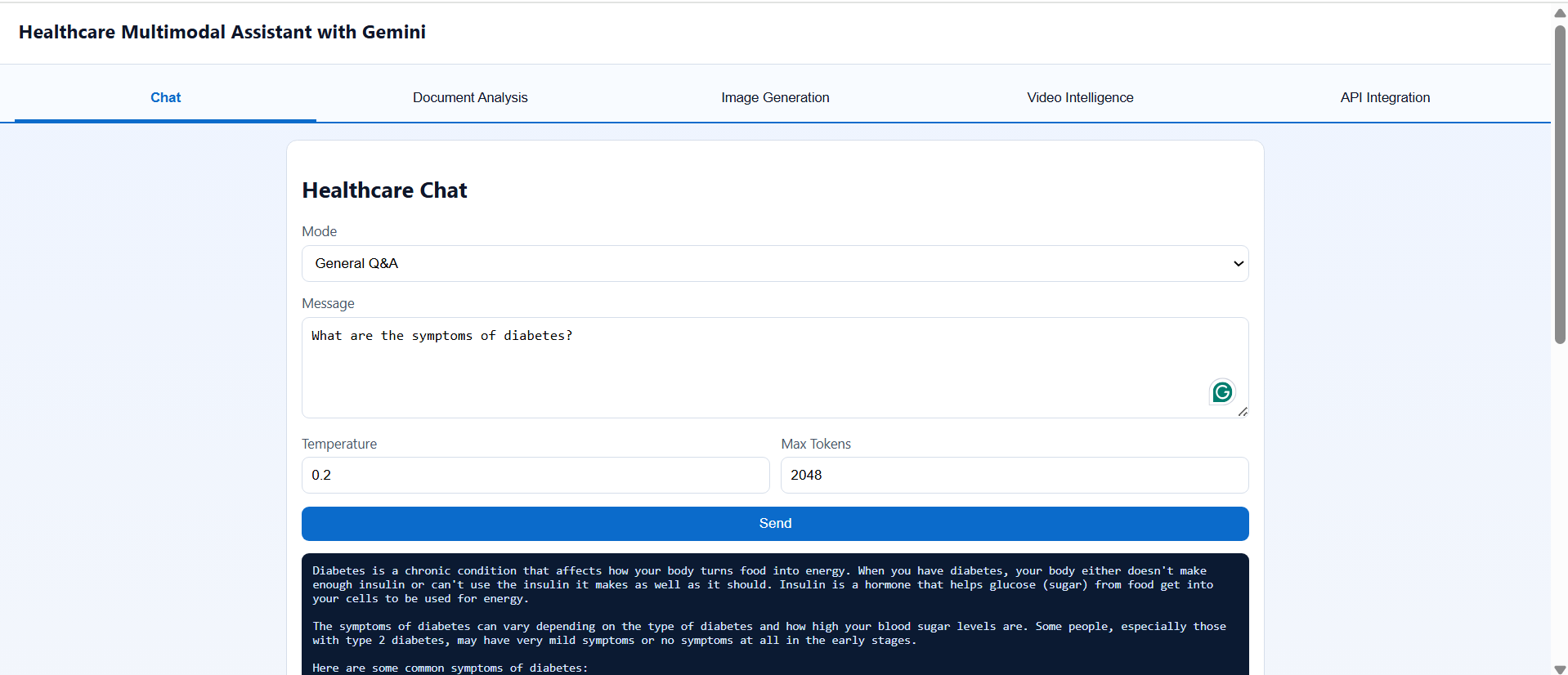
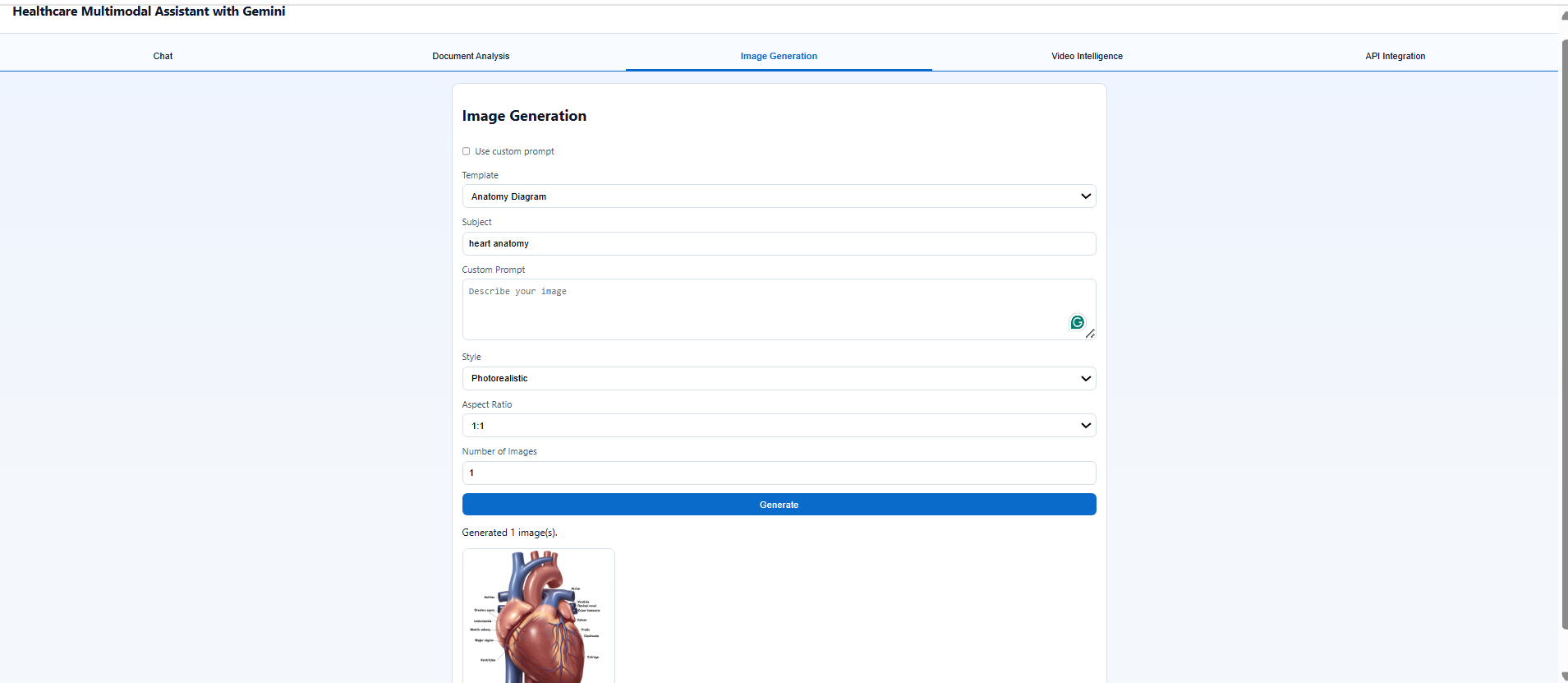
The follwoing images shows the web application of Healthcare Multimodal Assistant Application with Gemini:
Google Cloud Platform Setup
This project depends on Google Cloud Platform services for model access and file storage.
1. Gemini and Vertex AI
Gemini models are accessed through Vertex AI, not directly from the frontend.
| Attribute | Details |
|---|---|
| What you need | 1. A Google Cloud project with Vertex AI enabled. 2. A service account with Vertex AI permissions. 3. The project ID in .env as PROJECT_ID.4. The service account key in .env as a base64-encoded JSON string in SERVICE_ACCOUNT_KEY. |
| How it is used in the code | - backend/utils.py loads credentials and initializes Vertex AI.- backend/main.py calls init_vertex_ai() on startup.- The assistant modules use Gemini model names from environment variables. |
| Model settings used by this project | - GEMINI_MODEL: text chat and document analysis- GEMINI_VIDEO_MODEL: video/audio analysis- IMAGEN_MODEL: image generation |
2. Google Cloud Storage bucket
The bucket is required for uploading video/audio files before analysis.
| Attribute | Details |
|---|---|
| What you need | 1. A GCS bucket name in .env as VIDEO_UPLOAD_BUCKET.2. Bucket write permission for the service account. 3. Cloud Storage access enabled for the project. |
| How it is used in the code | - backend/main.py uploads selected media to the bucket in /api/video/upload.- The upload endpoint returns a gs://... URI.- backend/modules/video_intelligence.py reads that gs://... URI during analysis. |
| Recommended permissions | - Storage Object Creator or higher on the bucket- Vertex AI User / Vertex AI Service Agent as needed for model access |
3. Minimum .env values
The following environment variables are required to configure the backend for secure access to Google Cloud services and Gemini/Imagen models. These values must be set in your .env file before running the application. They provide credentials, project details, and model settings needed for authentication, storage, and AI model selection.
SERVICE_ACCOUNT_KEY=<base64_encoded_service_account_json>
PROJECT_ID=<your_gcp_project_id>
VERTEX_AI_LOCATION=us-central1
VIDEO_UPLOAD_BUCKET=<your_gcs_bucket_name>
GEMINI_MODEL=gemini-2.0-flash-lite
GEMINI_VIDEO_MODEL=gemini-2.5-flash
IMAGEN_MODEL=imagen-3.0-generate-002
Environment Setup and Run/Stop
1. Prerequisites:
- Docker Desktop installed and running.
- A GCP project with Vertex AI enabled.
- A service account with permissions for Vertex AI and (if using upload) Cloud Storage.
- A GCS bucket for video/audio upload.
2. Configure environment:
Create .env from .env.example and fill values.
To set up your environment, copy the .env.example file to .env and provide the necessary values.
3. Run (Docker):
From the folder containing docker-compose.yml:
build:
1
docker compose up --build
Stop:
1
docker compose down
Restart:
1
docker compose restart
What Happens Step-by-Step
1. Startup flow
This section describes the initialization process when the application starts. The backend server is launched, the Vertex AI environment is set up, the static frontend is served, and the UI is prepared for user interaction.
- Container starts
uvicorn backend.main:app --host 0.0.0.0 --port 7860. - FastAPI startup event runs
init_vertex_ai()frombackend/utils.py. - Static frontend is mounted at
/assets; root/servesfrontend/index.html. - Frontend initializes and calls
/api/optionsto populate dropdowns.
2. Chat flow
This section outlines the steps for handling chat interactions. User messages are sent to the backend, processed by the Gemini model, and responses are streamed back to the UI for real-time healthcare Q&A.
-
User enters message and mode in Chat tab.
- Frontend POSTs to
/api/chat. - Backend builds/gets chat model via
get_chat_model(). get_healthcare_response()applies task prompt template and gets streamed model text.- Backend returns final text to UI.
3. Document analysis flow
This section explains how users can upload medical documents or images for analysis. The backend processes the files using Gemini’s vision capabilities and returns results in various formats, such as narrative, structured data, or entity extraction.
- User uploads file + selects analysis mode/output format.
- Frontend sends multipart form to
/api/document/analyze. - Backend reads file bytes and gets vision model via
get_vision_model(). - Depending on output format:
- Narrative:
analyze_medical_image() - Structured JSON:
analyze_medical_image_structured() - Plain language:
simplify_medical_content() - Entity extraction:
extract_entities_from_document()
- Narrative:
- Response text/json is returned and rendered.
4. Image generation flow
This section covers the workflow for generating healthcare-related images. Users can choose between template-based or custom prompts, and the backend uses Imagen to create and return images for display in the UI.
- User chooses template mode or custom prompt mode.
- Frontend POSTs JSON to
/api/image/generate. - Backend calls:
generate_healthcare_images()for template modegenerate_from_custom_prompt()for custom mode
- Images returned as base64 data URLs.
- Frontend renders gallery images.
5. Video flow
This section details how users can upload and analyze healthcare videos or audio files. Uploaded media is stored in GCS, analyzed by Gemini, and results are presented in text or structured formats.
- User uploads media from Video tab.
- Frontend sends file to
/api/video/uploadusingXMLHttpRequestwith progress. - Backend validates media type, uploads to GCS, returns
gcs_uri. - User clicks Analyze.
- Frontend POSTs
gcs_uri, mode, mime type to/api/video/analyze. - Backend calls:
analyze_healthcare_video()(text)analyze_healthcare_video_structured()(JSON)
- Results shown in output panel.
6. Function-calling flow
This section describes how the application enables advanced API integration through Gemini’s function-calling capabilities. User queries can trigger real healthcare API calls, with results grounded and returned to the UI.
- User sends query in API Integration tab.
- Frontend POSTs to
/api/function/query. - Backend optionally calls
get_function_call_details(). - Backend calls
run_healthcare_function_calling(). - Gemini requests a tool function; backend executes mapped API call from
FUNCTION_REGISTRY. - Backend sends function response back to Gemini for final grounded answer.
- UI shows answer + optional details.
Techniques Used (with Applied Examples)
The following table summarizes the key techniques and best practices used throughout the application. Each technique is designed to enhance safety, reliability, user experience, and the overall effectiveness of the healthcare assistant. The table explains where each method is implemented and its specific purpose within the system.
| Technique | Where/How Used | Purpose/Example |
|---|---|---|
| System instruction and persona steering | chat_assistant.py via HEALTHCARE_SYSTEM_INSTRUCTION |
Enforces safe behavior: add disclaimers and recommend professional consultation |
| Task-specific prompt templates | image_studio.py → HEALTHCARE_PROMPT_TEMPLATES; Chat mode Clinical Note Summarization |
Wraps input into SOAP-format instruction for clinical notes; uses templates for image generation |
| Multimodal prompting (image/video + text) | video_intelligence.py with [video_part, prompt]; Video analysis sends GCS URI Part.from_uri(...) |
Combines media and text for analysis; enables clinical video/image understanding |
| Structured JSON generation | analyze_healthcare_video_structured(); GenerationConfig(response_mime_type="application/json") then json.loads(...) |
Produces structured outputs for downstream processing |
| Streaming generation | model.generate_content(..., stream=True) |
Aggregates streamed responses chunk-by-chunk for real-time output |
| Function calling (tool use) | Follow-up with Part.from_function_response(...); Query triggers get_medication_info → backend calls OpenFDA |
Enables Gemini to call real APIs/tools and ground answers with external data |
| GCS upload with strict validation | /api/video/upload in backend/main.py |
Validates media type/extension, handles permission errors, returns user-friendly guidance |
| Lazy model caching | backend/main.py with _get_*_model_cached helpers |
Reuses model instances after first load to reduce overhead |
| Defensive error handling | Media rejection returns user-friendly 400 message in /api/video/analyze |
Ensures robust error handling and clear user feedback |
Service Modules Overview
1. Healthcare Chat: backend/modules/chat_assistant.py
| Attribute | Details |
|---|---|
| What it does | Handles text-only healthcare chat tasks (Q&A, summaries, terminology, planning, differential diagnosis, medication info). |
| Model used | GEMINI_MODEL from backend/utils.py |
| Libraries used | vertexai.generative_models (GenerativeModel, GenerationConfig) |
| Prompts used | - HEALTHCARE_SYSTEM_INSTRUCTION for persona/safety.- TASK_PROMPTS for mode-specific prompt wrapping. |
| Important code | 1. get_chat_model(...): initializes model with system instruction + config.2. get_healthcare_response(...): template selection + streamed text aggregation.3. stream_healthcare_response(...): chunked output support.4. build_chat_history_prompt(...): composes multi-turn prompt from recent history. |
2.Document/Image Analysis: backend/modules/document_analyzer.py
| Attribute | Details |
|---|---|
| What it does | Analyzes uploaded medical documents/images in multiple styles: narrative, structured JSON, entity extraction, simplified explanation. |
| Model used | GEMINI_MODEL (vision-capable prompt path in current implementation). |
| Libraries used | vertexai.generative_models (GenerativeModel, Image, GenerationConfig)json for parsing structured responses. |
| Prompts used | ANALYSIS_PROMPTS includes:- Prescription Analysis - Lab Report Summarization - Medical Image Analysis - Clinical Document Summary - Healthcare Form Extraction |
| Important code | 1. get_vision_model()2. analyze_medical_image(...)3. analyze_medical_image_structured(...) with JSON mime type4. extract_entities_from_document(...)5. simplify_medical_content(...) with audience-aware prompting |
3.Healthcare API Integration: backend/modules/function_calling.py
| Attribute | Details |
|---|---|
| What it does | Lets Gemini call real healthcare-related tools/APIs, then combines API data into final grounded answers. |
| Model used | GEMINI_MODEL |
| Libraries used | vertexai.generative_models (FunctionDeclaration, Tool, Part, Content)requests for external HTTP calls |
| Prompts/tools used | Tool declarations: - get_medication_info- check_drug_interaction- lookup_icd10_code- search_clinical_trials- get_medical_definition |
| Important code | 1. healthcare_tools combines all tool declarations.2. FUNCTION_REGISTRY maps function names to Python callables.3. _call_openfda_drug_label, _call_openfda_adverse_events, _call_icd10_lookup, _call_clinical_trials, _call_medlineplus_definition4. run_healthcare_function_calling(...) full loop:- initial model call with tools - detect function call - execute tool - pass function result back to model 5. get_function_call_details(...) inspection/debug endpoint support. |
4.Image Generation: backend/modules/image_studio.py
| Attribute | Details |
|---|---|
| What it does | Generates healthcare images using Imagen templates or custom prompts. |
| Model used | IMAGEN_MODEL (default imagen-3.0-generate-002). |
| Libraries used | vertexai.preview.vision_models.ImageGenerationModelPillow for image objects |
| Prompts used | - HEALTHCARE_PROMPT_TEMPLATES- IMAGE_STYLES- Safety/quality suffix added in code |
| Important code | 1. get_image_generation_model() → loads Imagen model2. generate_healthcare_images(...) → builds prompt + style + safety settings3. generate_from_custom_prompt(...) → custom user prompt path |
5.Video/Audio Intelligence: backend/modules/video_intelligence.py
| Attribute | Details |
|---|---|
| What it does | Performs healthcare video/audio analysis from GCS media files in text or JSON mode. |
| Model used | GEMINI_VIDEO_MODEL (default gemini-2.5-flash). |
| Libraries used | vertexai.generative_models (GenerativeModel, Part, GenerationConfig)json |
| Prompts used | VIDEO_ANALYSIS_PROMPTS includes:- Video Summarization - Scene Identification - Rehabilitation Exercise Analysis - Surgical / Clinical Procedure Overview - Patient Education Content Review - Healthcare Workflow Analysis - Medical Training Video QA - Custom Video Query |
| Important code | 1. get_video_model()2. analyze_healthcare_video(...) text mode3. analyze_healthcare_video_structured(...) JSON mode with parse fallback |
API Surface Summary
The following is a summary of the main REST API endpoints exposed by the backend. Each endpoint provides a specific capability for the healthcare assistant application, enabling communication between the frontend and backend services for chat, document analysis, image generation, video/audio processing, and API integration.
Main endpoints from backend/main.py:
GET /api/healthGET /api/optionsPOST /api/chatPOST /api/document/analyzePOST /api/image/generatePOST /api/video/uploadPOST /api/video/analyzePOST /api/function/query
Resources
- Gemini Models (API Documentation)
- Prompt Design Strategies for Gemini
- Prompting with Media Files
- Gemini by Google DeepMind
- Large multimodal model prompting with Gemini
Project repository
GitHub Code: Healthcare Multimodal Assistant with Gemini