CI/CD with GitHub Actions for an Azure OpenAI app on Azure Container Apps (ACR + GHCR Options)
Guide
Table of Contents
- Introduction
- 1- GitHub Repository Structure
- 2. Local prerequisites
- 3. Create Azure resources
- 3.1 Create Azure Container Registry (ACR)
- 3.2 Create Azure Container App
- 4. Dockerfile
- 5. Test image locally first
- 6. Push one test image manually to ACR
- 6.1 Build the ACR-tagged image
- 6.2 Login to Azure and ACR
- 6.3 Push
- 7. Configure the Container App to pull from ACR
- 7.1 How to apply settings using CLI
- 7.2 How to apply settings in Azure Portal
- 8. Create Azure credentials for GitHub Actions
- 9. GitHub Actions workflow using ACR only
- 10. Environment variables for Azure OpenAI and Azure AI Search
- 11. Set the image in Azure Container App
- 12. How to test the automation
- 12.1 Make a visible change
- 12.2 Commit and push
- 12.3 Check GitHub Actions
- 12.4 Check Azure
- 12.5 Open the app URL
- 13. How to verify your app is actually running
- 14. Common mistakes and fixes
- 15. Optional: use Azure built-in deploy action instead of manual CLI deploy
- 16. Optional: Select GHCR instead of ACR (where image is stored)
- Main idea
- 16.1. If you choose GHCR
- 16.2. If you choose ACR
- 16.3. Exact settings that differ
Introduction
We want a workflow where:
- You write and update code locally in VS Code.
- You push code to GitHub.
- GitHub Actions automatically builds a Docker image.
- GitHub Actions pushes that image to Azure Container Registry (ACR).
- GitHub Actions updates Azure Container Apps to use the new image.
- Azure creates a new revision of your app.
This is better than manually building and pushing images every time.
1- GitHub Repository Structure
Your GitHub repository should contain:
- your Python code
requirements.txtDockerfile.github/workflows/deploy.yml- optionally
docker-compose.ymlfor local development only
Do not commit secrets such as .env, Azure keys, PATs, or admin keys. GitHub push protection can block pushes when secrets are detected. Add .env to .gitignore. GitHub docs on publishing images assume your repository contains source and workflow files; the image itself is built during the workflow, not stored as a repo file.
Example .gitignore:
.env
__pycache__/
*.pyc
.venv/
2. Local prerequisites
Install and prepare:
- Docker Desktop
- Azure CLI
- Git
- VS Code
For ACR login from your machine, Azure docs say the normal interactive pattern is:
1
2
az login
az acr login --name <acrName>
az acr login uses the Azure CLI login token together with Docker. Docker must be installed and running.
Also install the latest Container Apps extension:
1
az extension add --name containerapp --upgrade
Azure Container Apps GitHub Actions docs explicitly call this out.
3. Create Azure resources
You need:
- Azure Container Registry
- Azure Container App
- Resource Group
- Azure OpenAI resource
- optionally Azure AI Search
3.1 Create Azure Container Registry (ACR)
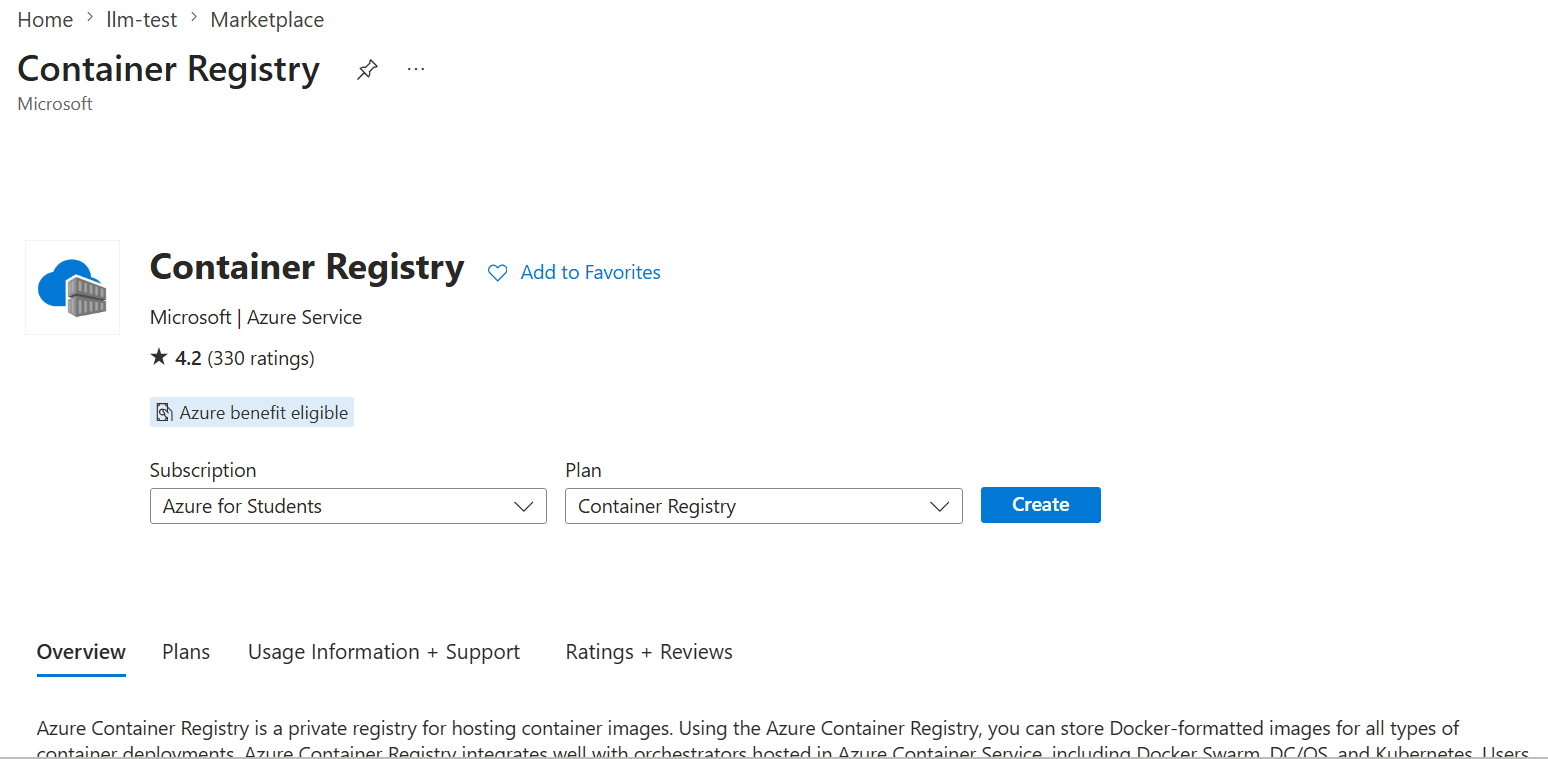
In Azure Portal:
- Create resource
- Search
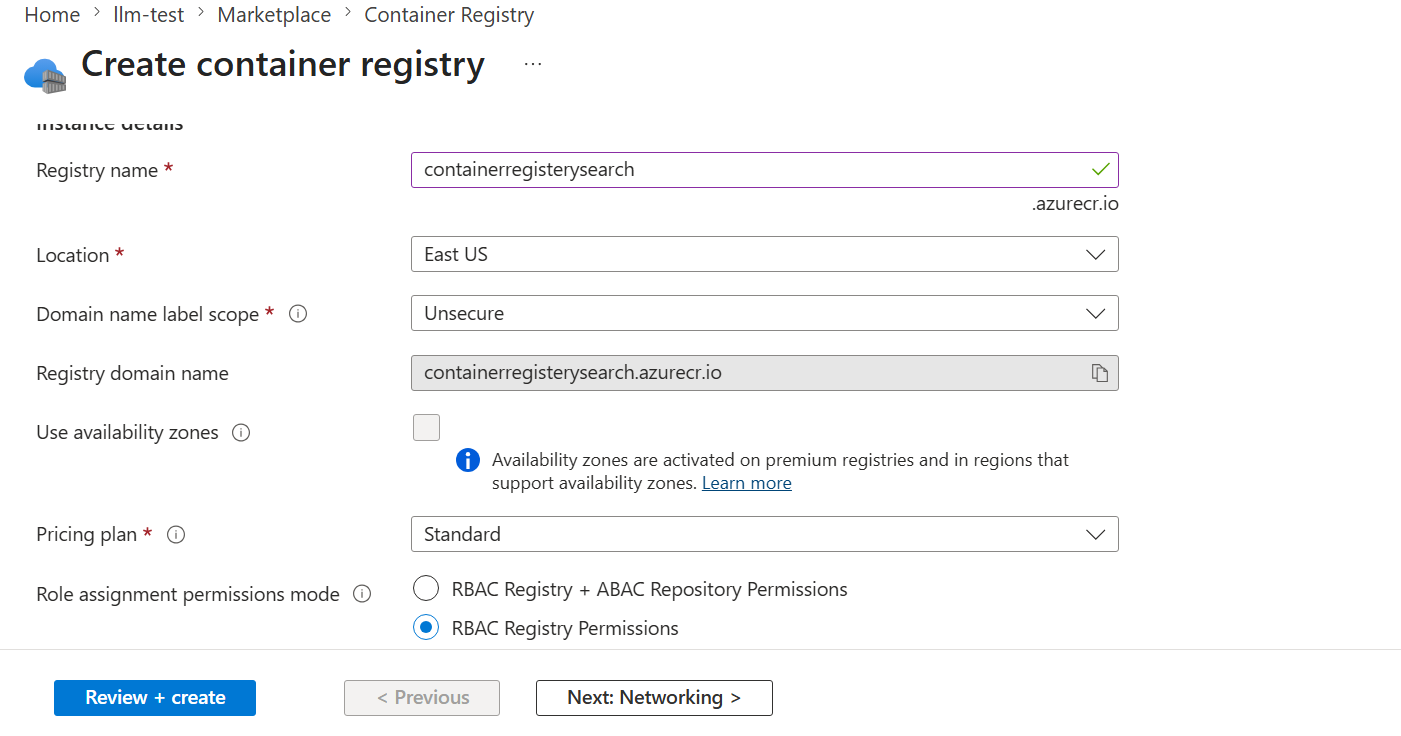
Container Registry - Choose a name, for example:
containerregisterysearch - Choose your subscription and resource group
- Create
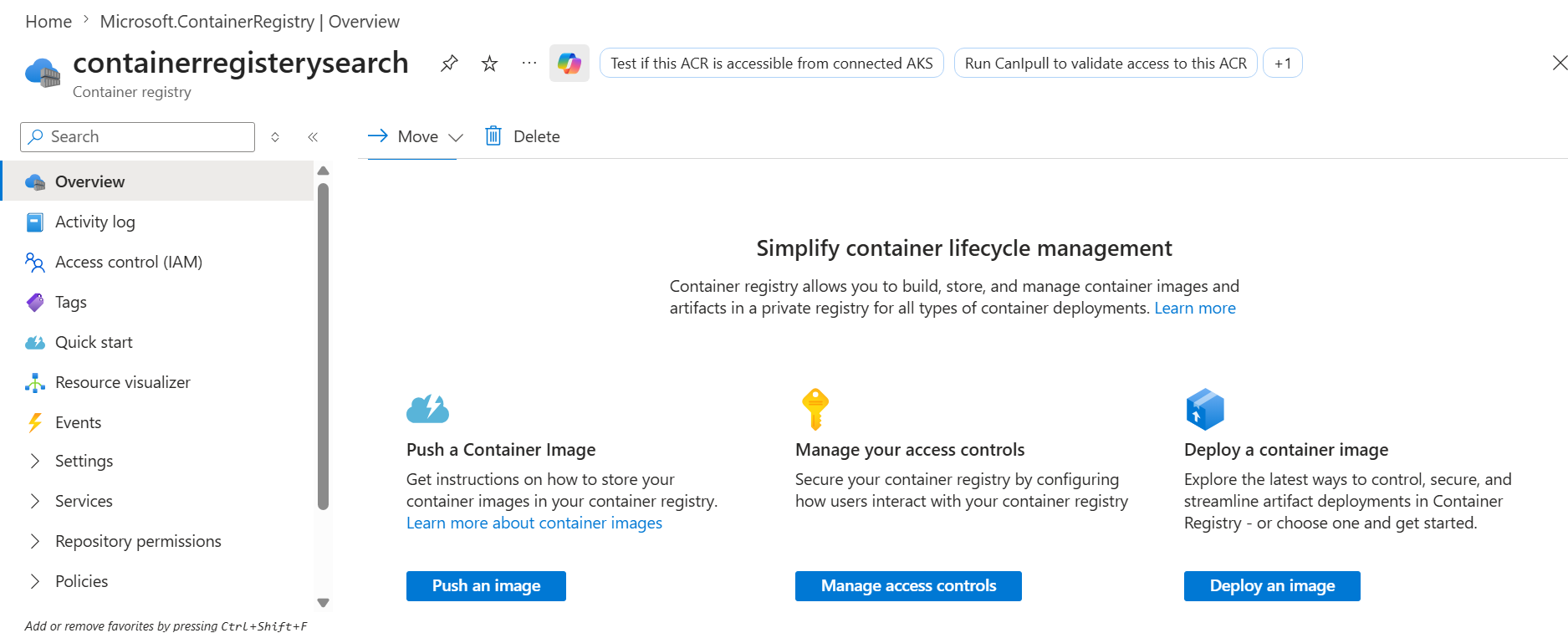
You can also log in to that registry later with:
1
az acr login --name containerregisterysearch
3.2 Create Azure Container App
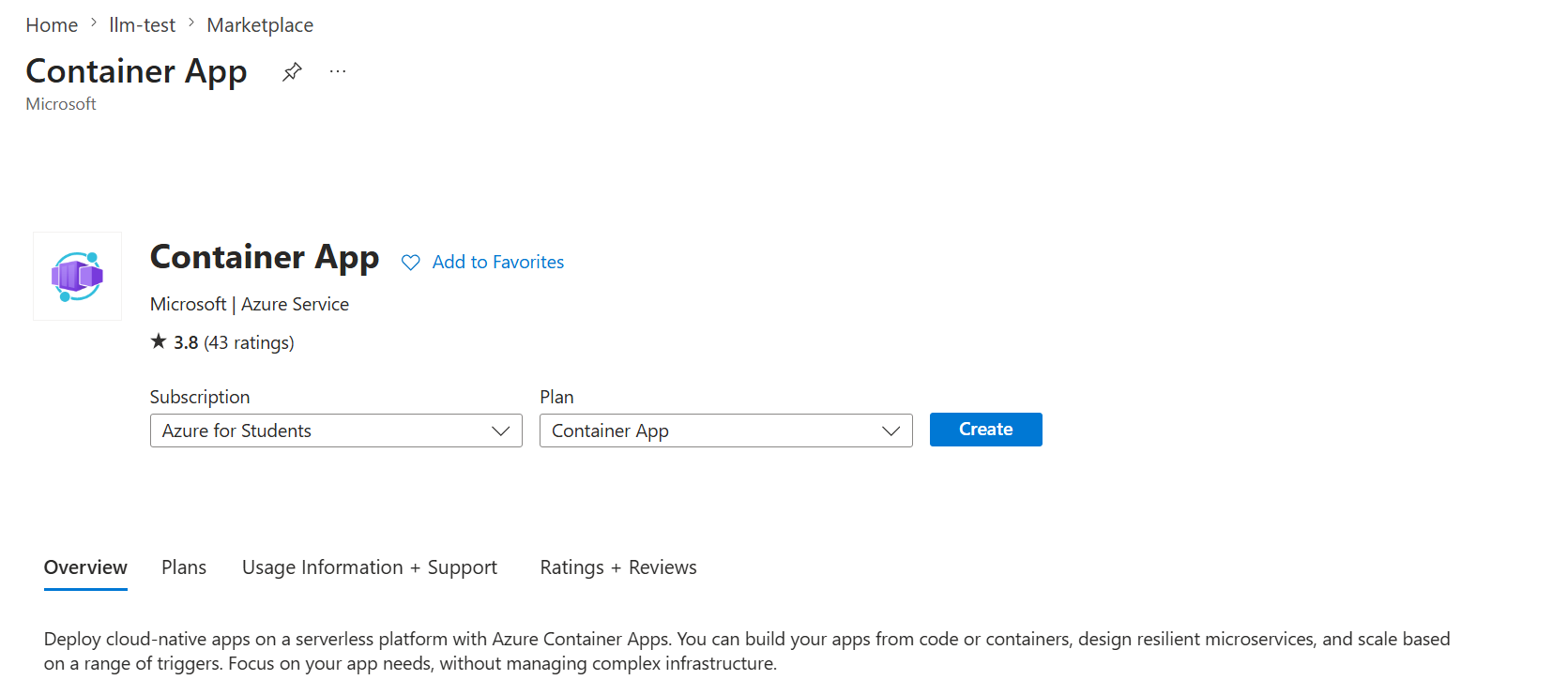
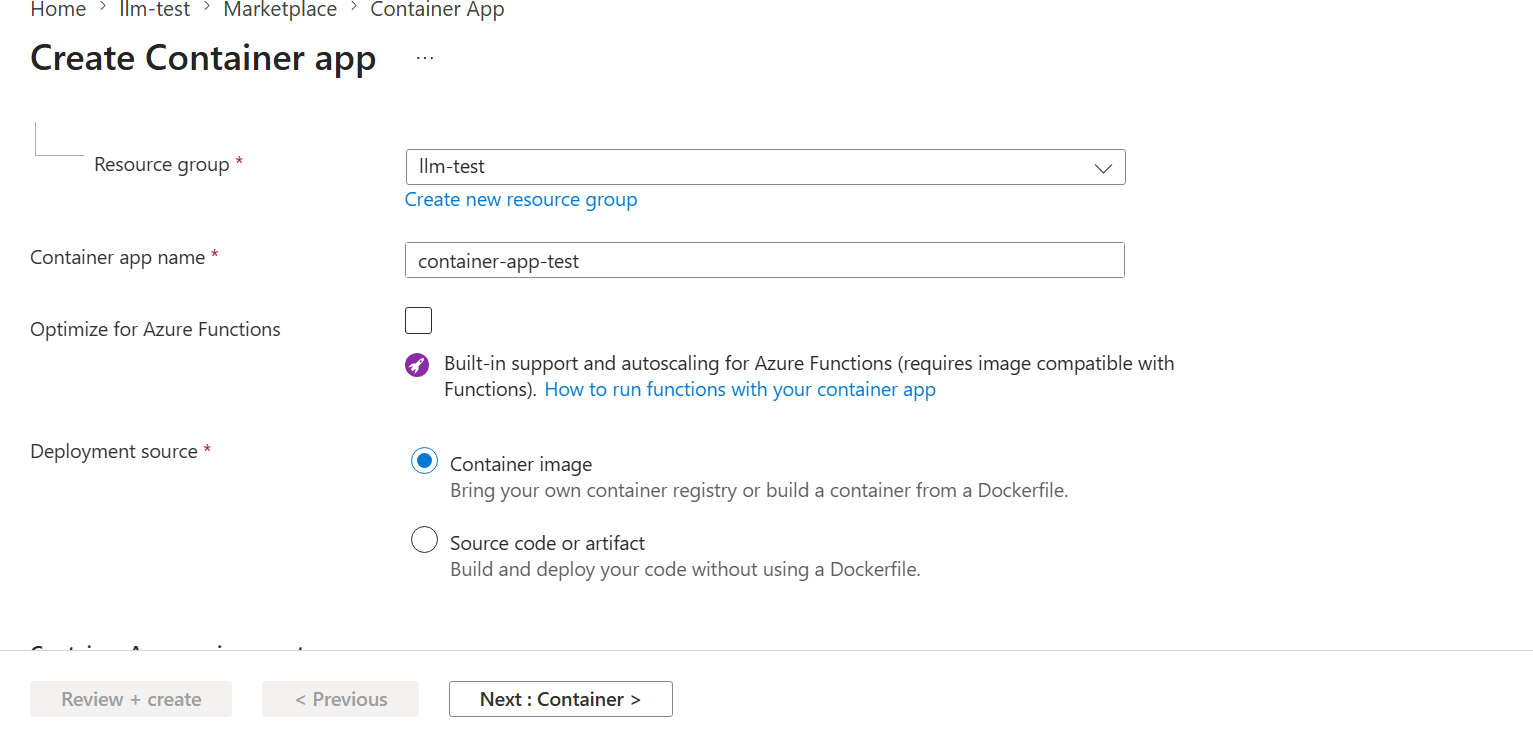
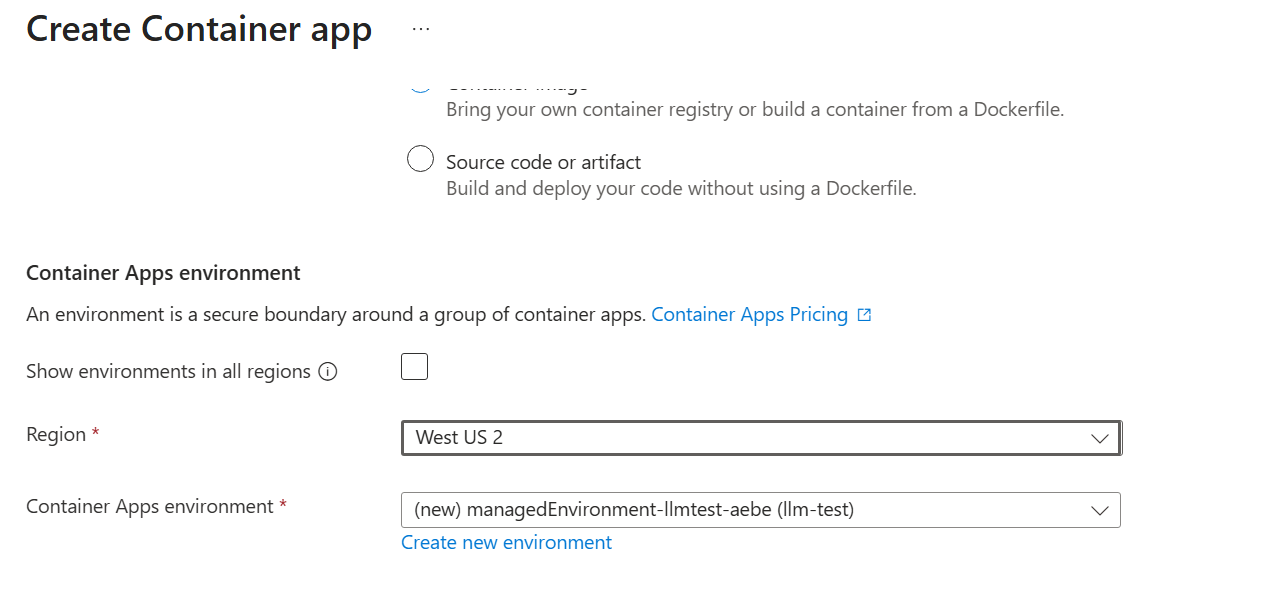
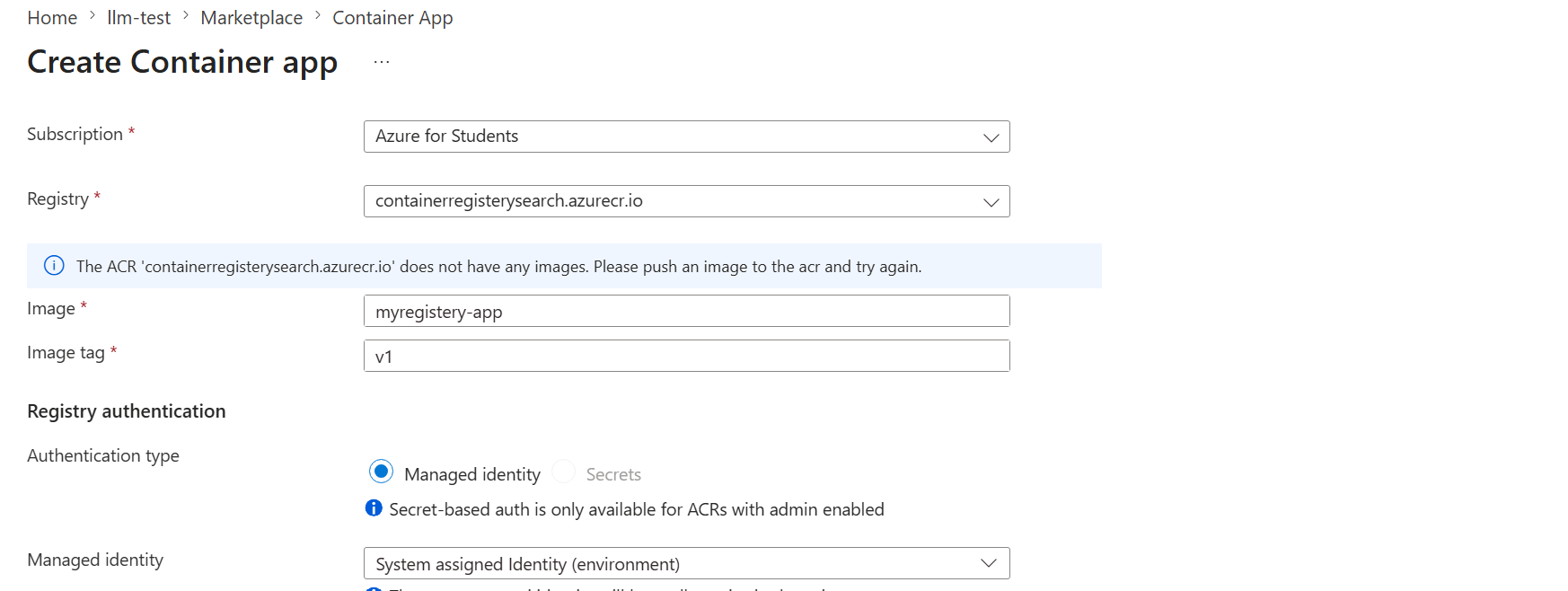
Create the Container App in Azure Portal.
Important settings:
- app name:
container-app-test - resource group: for example
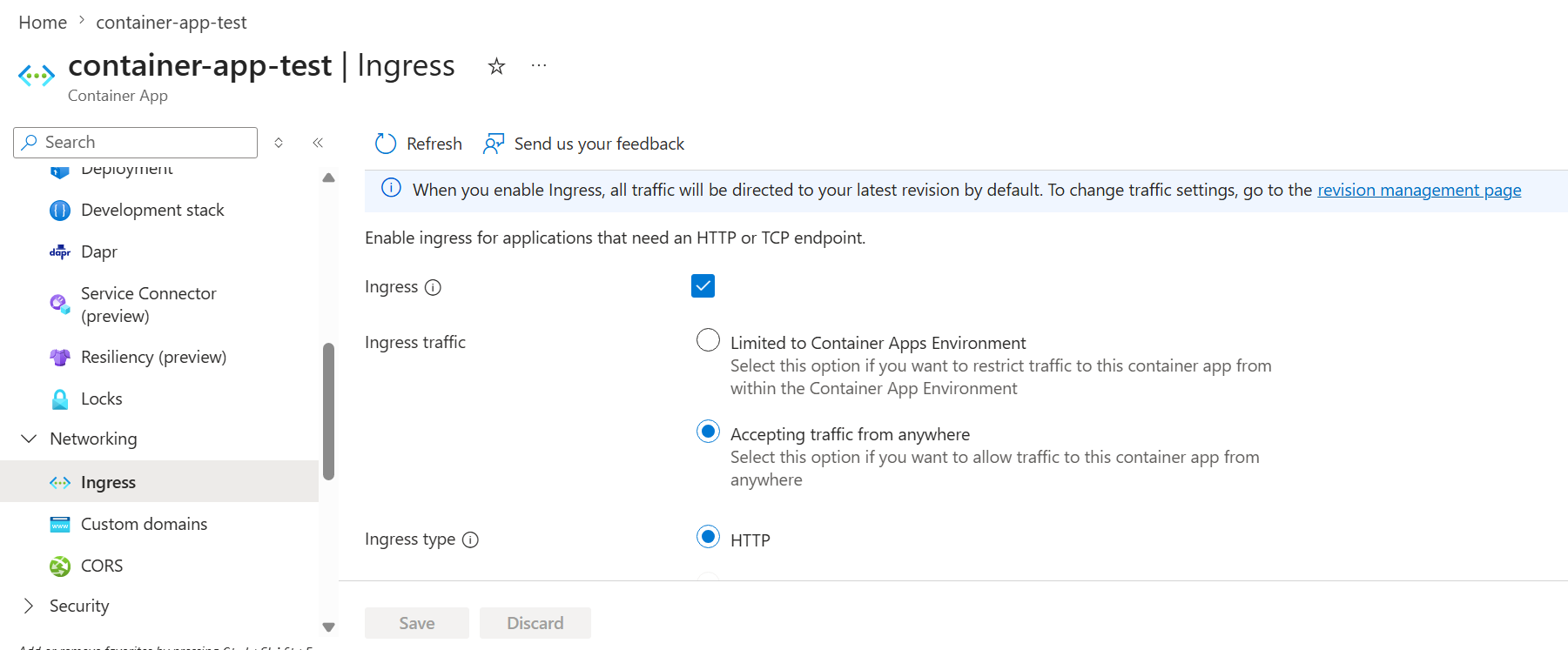
llm-test - ingress: External (under networking, select ingress and set it on and click on “Accepting traffic from anywhere”. Then later, using the Application URL can link to the running app)
- target port: must match your app port
Your logs showed Uvicorn running on port 8010, so Azure Container Apps ingress target port should also be 8010.
Azure docs confirm that pushing updates creates new revisions, and Container Apps supports GitHub Actions deployment directly.
4. Dockerfile
Your app needs a working Dockerfile. Example for FastAPI:
1
2
3
4
5
6
7
8
9
10
11
12
FROM python:3.11-slim

WORKDIR /app

COPY requirements.txt .
RUN pip install --no-cache-dir -r requirements.txt

COPY . .

EXPOSE 8010

CMD ["uvicorn", "backend.main:app", "--host", "0.0.0.0", "--port", "8010"]
Adjust backend.main:app to your real module path.
5. Test image locally first
From your project folder run:
1
2
docker build -t myregistry-app:local .
docker run -p 8010:8010 myregistry-app:local
Then open:
http://localhost:8010- or
http://localhost:8010/docs(for FastAPI)
6. Push one test image manually to ACR
Before automating, test the registry path once.
6.1 Build the ACR-tagged image
1
docker build -t containerregisterysearch.azurecr.io/myregistry-app:latest .
6.2 Login to Azure and ACR
1
2
az login
az acr login --name containerregisterysearch
6.3 Push
1
docker push containerregisterysearch.azurecr.io/myregistry-app:latest
If successful, the image should appear under:
Azure Portal -> Container Registry -> Repositories -> myregistry-app
Azure documents az acr login as the standard way to authenticate Docker to ACR from your workstation.
7. Configure the Container App to pull from ACR
Azure says the deploy action can push to ACR using the Azure login credentials, and the Container App itself should authenticate to ACR using either managed identity or admin credentials, with managed identity recommended.
7.1 How to apply settings using CLI
7.1.1 Enable managed identity on the Container App
1
2
3
4
az containerapp identity assign \
  --name container-app-test \
  --resource-group llm-test \
  --system-assigned
Azure official workflow guide uses this pattern.
7.1.2 Get the ACR resource ID
1
az acr show --name containerregisterysearch --query id --output tsv
Azure guide uses this exact step.
7.1.3 Give the Container App managed identity AcrPull
1
2
3
4
az role assignment create \
  --assignee <MANAGED_IDENTITY_PRINCIPAL_ID> \
  --role AcrPull \
  --scope <ACR_RESOURCE_ID>
This is also the official ACR pull pattern in the Container Apps GitHub Actions guide.
7.1.4 Tell the Container App to use managed identity for ACR
1
2
3
4
5
az containerapp registry set \
  --name container-app-test \
  --resource-group llm-test \
  --server containerregisterysearch.azurecr.io \
  --identity system
Azure documents az containerapp registry set for adding or updating registry details, and the workflow guide shows configuring a Container App to use managed identity against ACR.
7.2 How to apply settings in Azure Portal
7.2.1 Enable Managed Identity
Go to: Azure Container Apps -> your app -> Identity
Turn ON:
- System assigned -> ON
Click Save.
7.2.2 Assign AcrPull role
Go to: Azure Container Registry -> Access control (IAM) -> Add role assignment
Fill:
- Role:
AcrPull - Assign access to:
Managed identity - Select your container app (
container-app-test)
Click Save.
7.2.3 Link Container App to ACR
Go to: Container App -> Containers
Click: Edit and deploy new revision
Then:
- Image source: Azure Container Registry
- Registry:
containerregisterysearch - Image:
myregistry-app:latest
Save / Deploy.
8. Create Azure credentials for GitHub Actions
Your GitHub workflow needs a secret called AZURE_CREDENTIALS.
Azure current docs now show creating the service principal JSON using --json-auth --output json. They also note that --sdk-auth is deprecated.
Recommended command:
1
2
3
4
5
6
az ad sp create-for-rbac \
  --name "CICD-my-app" \
  --role Contributor \
  --scopes /subscriptions/{subscription_Id}/resourceGroups/{resourceGroup_name} \
  --json-auth \
  --output json
Notes:
- Use your real subscription ID.
- Use your real resource group.
- If ACR and Container App are in different resource groups, include both scopes. Azure docs mention that if the registry is in a different resource group, both scopes must be included.
Add this JSON to GitHub:
- Go to: GitHub repo -> Settings -> Secrets and variables -> Actions -> New repository secret
- Name:
AZURE_CREDENTIALS - Value: paste the entire JSON output exactly
Azure Container Apps workflow docs require this secret and describe this process.

9. GitHub Actions workflow using ACR only
Create: .github/workflows/deploy.yml
Use this file:
1
2
3
4
5
6
7
8
9
10
11
12
13
14
15
16
17
18
19
20
21
22
23
24
25
26
27
28
29
30
31
32
33
34
35
36
37
38
39
40
41
42
43
44
45
name: Deploy to Azure Container Apps using ACR

on:
  push:
    branches:
      - main

env:
  ACR_NAME: containerregisterysearch
  RESOURCE_GROUP: llm-test
  CONTAINER_APP_NAME: container-app-test
  IMAGE_NAME: myregistry-app

jobs:
  build-and-deploy:
    runs-on: ubuntu-latest

    steps:
      - name: Checkout repository
        uses: actions/checkout@v4

      - name: Log in to Azure
        uses: azure/login@v1
        with:
          creds: $

      - name: Log in to Azure Container Registry
        run: az acr login --name $ACR_NAME

      - name: Build Docker image
        run: |
          docker build -t $ACR_NAME.azurecr.io/$IMAGE_NAME:$ .
          docker tag $ACR_NAME.azurecr.io/$IMAGE_NAME:$ $ACR_NAME.azurecr.io/$IMAGE_NAME:latest

      - name: Push Docker image to ACR
        run: |
          docker push $ACR_NAME.azurecr.io/$IMAGE_NAME:$
          docker push $ACR_NAME.azurecr.io/$IMAGE_NAME:latest

      - name: Update Azure Container App
        run: |
          az containerapp update \
            --name $CONTAINER_APP_NAME \
            --resource-group $RESOURCE_GROUP \
            --image $ACR_NAME.azurecr.io/$IMAGE_NAME:$
Why this works:
azure/loginauthenticates the workflow to Azure.az acr loginauthenticates Docker to ACR.- image is built and pushed.
az containerapp updatepoints the app to the newly pushed unique SHA-tagged image.
Azure documents az containerapp update as the command to update a container app, and notes that in multiple revisions mode it creates a new revision based on the latest revision. Azure also recommends using a unique tag like commit SHA, not just latest, for reliable new revisions.
Note: Why use github.sha instead of only latest
Use both:
$for deploymentlatestas a convenience tag
Azure explicitly recommends unique tags such as the Git commit SHA instead of a stable tag like latest, because this helps avoid caching issues and ensures new revisions are created reliably.
10. Environment variables for Azure OpenAI and Azure AI Search
Your app will still need its own runtime settings.
In Azure Container App, add environment variables or secrets such as:
AZURE_OPENAI_ENDPOINT=
AZURE_OPENAI_API_KEY=
AZURE_OPENAI_DEPLOYMENT_NAME=
AZURE_OPENAI_API_VERSION=

AZURE_SEARCH_ENDPOINT=
AZURE_SEARCH_KEY=
AZURE_SEARCH_INDEX_NAME=
If your app uses Azure AD or other services, add those too.
These belong in the Container App configuration, not in GitHub workflow unless the workflow itself needs them.
11. Set the image in Azure Container App
In Azure Portal:
- Open Container App
- Go to Containers
- Click Edit and deploy new revision
- Choose image:
containerregisterysearch.azurecr.io/myregistry-app:latest
The important thing is that the image name in Azure matches the same image name your workflow pushes.
Even if the workflow later deploys SHA tags, the manual initial setup should still use the same repository path:
containerregisterysearch.azurecr.io/myregistry-app
12. How to test the automation
12.1 Make a visible change
Change something users can see, for example:
1
return {"message": "Deployment test v2"}
A comment-only change is not a good test because you cannot see it in the browser.
12.2 Commit and push
1
2
3
git add .
git commit -m "Test CI/CD deployment"
git push origin main
12.3 Check GitHub Actions
Open: GitHub repo -> Actions
You want to see:
- Azure login success
- Docker build success
- Docker push success
- container app update success


Also, you can packages in your github acount:

12.4 Check Azure
Open: Azure Portal -> Container App -> Revisions
A new revision should appear after the workflow succeeds.
12.5 Open the app URL
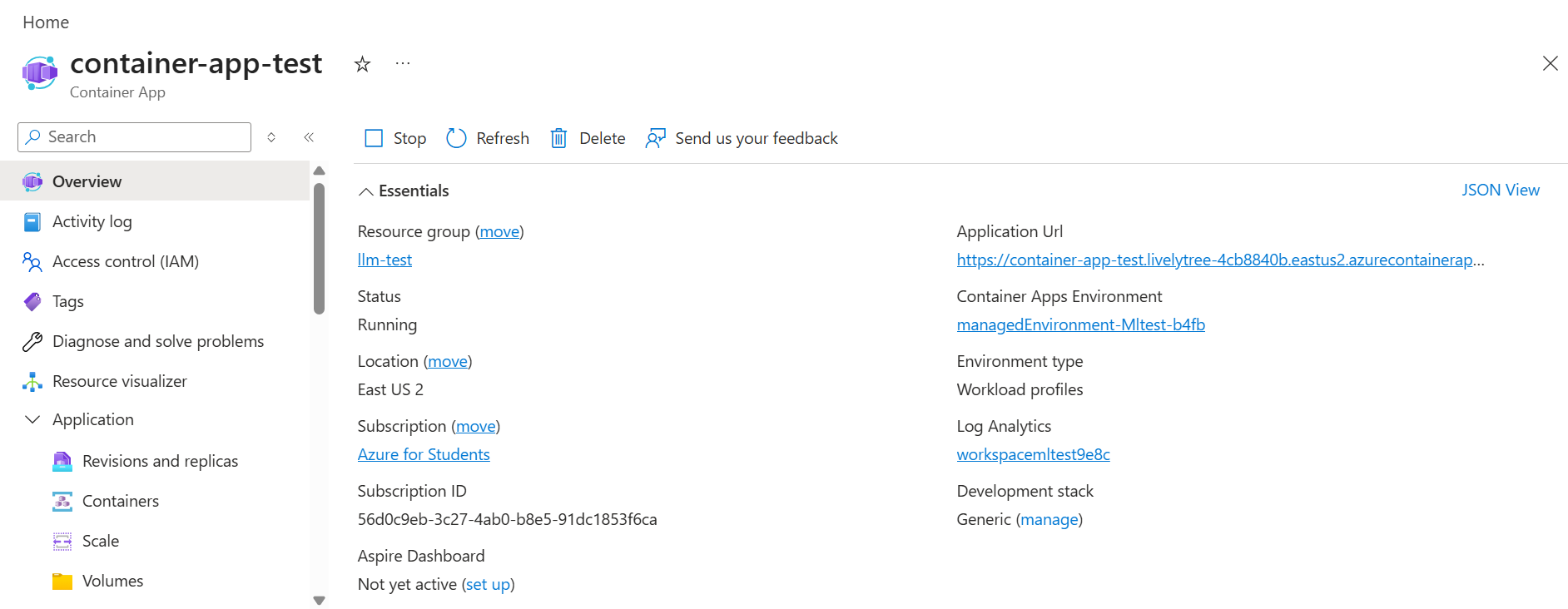
Go to: Azure Portal -> Container App -> Overview -> Application URL
Then refresh the page and verify that your visible change appears.
Azure Container Apps guide states that a workflow run should start on push, and that pushing a new commit should deploy a new revision.
13. How to verify your app is actually running
If logs show:
Uvicorn running on http://0.0.0.0:8010
that means the container is running internally.
To reach it in the browser:
- ingress must be enabled
- ingress must be external
- target port must be
8010
If the URL contains .internal., it is an internal-only URL and not meant for public browser access.
14. Common mistakes and fixes
Mistake 1: Mixing GHCR and ACR
Fix: use only ACR for this workflow.
Mistake 2: Wrong image name
These must match exactly:
- in workflow
- in ACR
- in Azure Container App
Use containerregisterysearch.azurecr.io/myregistry-app everywhere.
Mistake 3: No AZURE_CREDENTIALS
Fix: create the service principal JSON and save it as a GitHub secret.
Mistake 4: Container App cannot pull image
Fix:
- enable managed identity
- assign
AcrPull - configure registry with
az containerapp registry set
Mistake 5: Only using latest
Fix: deploy with $.
Mistake 6: Secrets committed to GitHub
Fix:
- remove from history
- rotate the secret
- add
.envto.gitignore
Mistake 7: Wrong port
Fix: set Container App ingress target port to the same port your app listens on.
15. Optional: use Azure built-in deploy action instead of manual CLI deploy
For YAML file, we have two options:
- Use manual CLI YAML if you want clearer debugging and control (the
.ymlfile above). - Use built-in action YAML if you want cleaner, shorter workflow files.
Azure also provides azure/container-apps-deploy-action@v1, which can build and deploy Container Apps directly. Their docs show both:
- build from source
- deploy an existing image
Example from Azure docs:
1
2
3
4
5
6
7
8
9
10
11
12
- name: Log in to Azure
  uses: azure/login@v1
  with:
    creds: $

- name: Build and deploy Container App
  uses: azure/container-apps-deploy-action@v1
  with:
    appSourcePath: $/src
    acrName: myregistry
    containerAppName: my-container-app
    resourceGroup: my-rg
Or deploy an existing image with:
1
imageToDeploy: myregistry.azurecr.io/app:$
Azure documents both patterns.
16. Optional: Select GHCR instead of ACR (where image is stored)
Main idea
Both options do the same job at a high level:
- GitHub Actions builds your Docker image.
- GitHub Actions pushes the image to a registry.
- Azure Container App pulls that image and runs it.
The difference is where the image is stored:
- Option A: GHCR -> image stored in GitHub Container Registry at
ghcr.io/... - Option B: ACR -> image stored in Azure Container Registry at
*.azurecr.io/...
16.1. If you choose GHCR
Your image path becomes:
ghcr.io/<your-github-username>/<image-name>:<tag>
Example:
ghcr.io/khanimkh/myregistry-app:latest
What changes:
In GitHub Actions:
- build and push to
ghcr.io/..., not*.azurecr.io/... - authenticate to GHCR before
docker push - usually use GitHub Packages auth such as a PAT classic or workflow token, depending on your setup
In Azure Container App:
- registry server =
ghcr.io - image =
ghcr.io/<username>/<image>:<tag> - configure registry authentication on the Container App, because Azure says for non-ACR registries like GHCR, you must configure the Container App to authenticate with the registry, even if image is public
What secrets/settings you need:
In GitHub:
AZURE_CREDENTIALSfor Azure deploymentGHCR_USERNAMEGHCR_PATif you use a PAT for push
In Azure Container App:
- registry username = your GitHub username
- registry password/secret = PAT if private, or still registry auth per Azure GHCR guidance even for public images in Container Apps
What to watch out for:
- image name and tag must match exactly everywhere
- GHCR auth is the extra moving part
- if package is private, Azure needs valid pull credentials
- GHCR public packages allow anonymous pull in GitHub registry generally, but Azure Container Apps still says to configure auth for non-ACR registries like GHCR
16.2. If you choose ACR
Your image path becomes:
containerregisterysearch.azurecr.io/myregistry-app:latest
What changes:
In GitHub Actions:
- build and push to
containerregisterysearch.azurecr.io/... - login to Azure
- login to ACR with
az acr login - push image to ACR
- update Container App with ACR image
In Azure Container App:
- use Azure Container Registry as image source
- easiest setup is managed identity +
AcrPullon the registry - then point app image to the ACR path
Azure recommends Microsoft Entra-based auth methods for ACR, and ACR integrates naturally with Azure RBAC and managed identities.
What secrets/settings you need:
In GitHub:
- usually just
AZURE_CREDENTIALS
In Azure:
- ACR resource
- Container App
- Container App managed identity enabled
AcrPullrole on the ACR for that managed identity
What to watch out for:
- Container App must be allowed to pull from ACR
- image path must match exactly everywhere
- this is usually simpler for Azure projects because auth stays inside Azure RBAC/identity
16.3. Exact settings that differ
| Area | GHCR | ACR |
|---|---|---|
| Image path | ghcr.io/user/app:tag |
registry.azurecr.io/app:tag |
| Registry server in Azure | ghcr.io |
containerregisterysearch.azurecr.io |
| Push auth in workflow | GitHub registry auth | Azure login + az acr login |
| Pull auth in Container App | username/password or registry secret for GHCR | managed identity + AcrPull recommended |
| GitHub secrets | AZURE_CREDENTIALS, often GHCR_USERNAME, GHCR_PAT |
usually AZURE_CREDENTIALS |
| Best fit | GitHub-centered | Azure-centered |
What stays the same
In both options:
- your repo still has code + Dockerfile + workflow YAML
- GitHub Actions still builds the image
- Azure Container App still runs the image
az containerapp updatestill updates to the new image and creates a new revision in multiple revisions mode